Saving pics (Add Media Control) to SharePoint from PowerApps is getting easier…

Add the “Add picture control” to a screen and set the AddMediaButton component to add the photo and a random filename to a collection.

“OnSelect” of AddMediaButton1 button add a collection as follows:
ClearCollect(colPics, {Pic:UploadedImage1.Image,Name:Rand() &”.png”})

2. Add a button to the screen and create a flow from it using the Action menu.

Click on “Flows” from “Action” Menu to create a new flow.

3. In the freshly minted flow, add a Parse JSON action, and in the content textbox, choose Ask in PowerApps from the data panel and add the following schema…

{
“type”: “array”,
“items”: {
“type”: “object”,
“properties”: {
“Name”: {
“type”: “string”
},
“Pic”: {
“type”: “string”
}
},
“required”: [
“Name”,
“Pic”
]
}
}
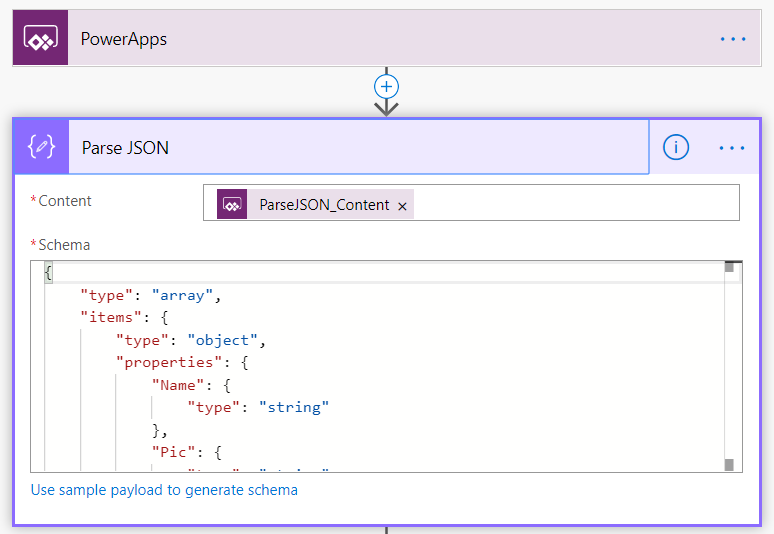
Img: In MS Flows add “Parse JSON” action and for “Content” just click on the Content textbox and from Right side, In PowerApps section select “Ask in PowerApps”.
For Schema, just paste the above json content.

4. Add a Create File action from SharePoint or OneDrive. In this case I will use SharePoint. From the data panel, set the File Name to Name from the Parse JSON action output. Since this is an array of files, Flow will wrap this action inside an Apply to Each action.

5. For the file content action, add an expression as follows:

decodeDataUri(item()['Pic'])

This expression is basically saying “for the selected array of photos, grab the Pic content and turn it back into binary

6. Save the flow and go back to your PowerApps. Choose the button “Save Pic to SP” again and link to your newly created Flow via the action menu.

Img: Select the flow which we created

7. Complete the expression on the button as follows…

Set(stuff, JSON(colPics,JSONFormat.IncludeBinaryData));
SaveAddMediaFromPA.Run(stuff)

This is the bit that is converting your photo collection to a form that can be easily sent to Flow…

7. Finally, take some pics and click your button… if all goes to plan, you will see your photos in SharePoint or OneDrive…

Copied from : http://www.cleverworkarounds.com/2019/06/08/getting-pics-to-sharepoint-from-powerapps-is-getting-easier/

Thanks to : CLEVERWORKAROUNDS

Upload Image of Add Media control from PowerApps to Flow to SharePoint via an Unused Outlook connector

This is the simplest no code approach to the PowerApps image upload problem so far. Far simpler than with Azure Function, with custom connector, with hacked Flow button via Flow Studio, even simpler than Azure Blob Storage. All standard connectors so no premium required, and no risk of PowerApps trigger resetting and breaking the connection.

This is my simplest method to upload any image from PowerApps to SharePoint

  • No Swagger
  • No Edit JSON
  • No Azure Blob Storage
  • All Standard Connectors
  • No HTTP
  • Can easily add more arguments

Steps – first a bit of study and exploration

I have a @MicrosoftFlow hack this evening to send files from @PowerApps to @SharePoint I have been thinking about this one for a while. So if you are still awake, follow along.

First – I check the Flow button trigger.
Then create a PowerApps trigger, use peek code to study

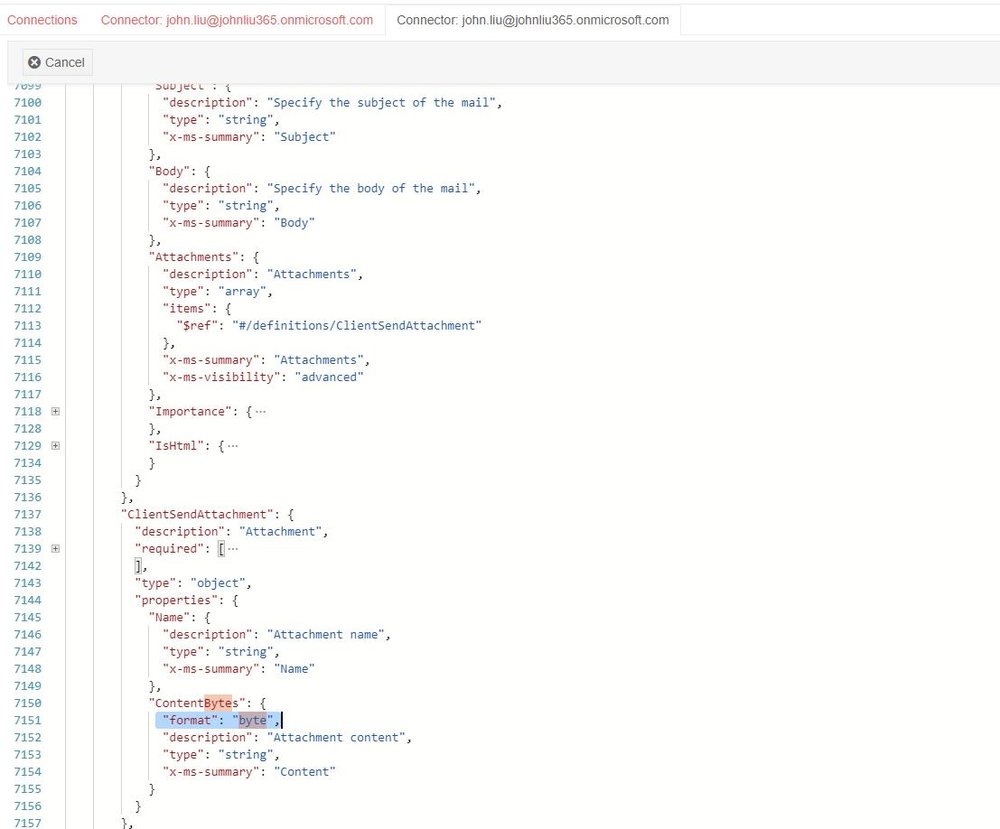
Double check SharePoint connector – I read this with FlowStudioApp – there’s no method that takes format: byte. Everything wants format: binary.

I spent a while looking through various standard connectors looking for something that does format: byte – I found one. In the Outlook connector.
In send email with attachment.

Evil twinkle in the eye acquired – we now execute the plan
So we hack the PowerApps trigger. by using a totally unrelated connector.
I can’t hold back my dislike of the PowerApps trigger. Why can’t it behave more like the Flow button trigger…

The argument sendanemail_attachmentscontent is ugly. Try using Flow Studio to rename them first before you go too far. This will also make the connection tidier when you take it over to PowerApps.

Finally

PowerApps time – this is probably my simplest method.
Don’t need Azure blob storage
Don’t need edit json
Don’t need swagger
Can have multiple arguments

Just need to conditionally build a strange Flow that doesn’t use the outlook connector but use it to lock the PowerApps trigger

  • See the condition is always false – it doesn’t run
  • See also the Size of the create file is much larger than a broken blob string
  • We need to keep the unused Send an email action even if we don’t use it – because it locks the PowerApps trigger in place so the trigger doesn’t reset.

And there we have it – the absolutely simplest no-code solution to send a File from PowerApps to SharePoint with ease.

We lock the PowerApps trigger to format: byte by using an otherwise unused Outlook send mail connector

Copy credits to John Liu
Original Link:
https://johnliu.net/blog/2019/4/flowninja-hack-87-lock-microsoft-flow-powerapps-trigger-to-upload-images-to-sharepoint-with-ease

Saving data from PowerApps to SharePoint Lookup columns using Patch function

Patch function will be used to create one or more records in a data source.

Patch(
TestList,
Defaults(TestList),
{
Title: User().Email,
UserName: User().FullName,
UserLookUpColumn: {
‘@odata.type’: “#Microsoft.Azure.Connectors.SharePoint.SPListExpandedReference”,
Id: LookUp(
ParentList,
Title = myDropDown.Selected.Title,
ID
),
Value: myDropDown.Selected.Title
},
UserLookUpColumn1: {
‘@odata.type’: “#Microsoft.Azure.Connectors.SharePoint.SPListExpandedReference”,
Id: LookUp(
ParentList1,
Title = myDropDown1.Selected.Title,
ID
),
Value: myDropDown1.Selected.Title
},
myDropdown2: myDropDown2.Selected.Value
}
);

To fetch Logged-in User’s Email, Full name and saving dropdown list values from PowerApps to SharePoint List Lookup columns

To get Manager’s name and Manager’s Manager’s name for a logged-in user in PowerApps

To get Current logged-in user's Manager email:
               Office365Users.Manager(User().Email).Mail); 

To get Current logged-in user's Manager's Manager email:               Office365Users.Manager(Office365Users.Manager(Office365Users.MyProfile().Mail).Mail).Mail

To display logged in user image: 
Office365Users.UserPhoto(User( ).Email)
Note: To display user image in rounded shape, adjust the "Border Radius" value for smaller images use "Border Radius" as : 70.